• Presence Button - Nobi Button (Self-Powered)

    In this article you will discover how Nobi can integrate with the Nobi Button for snoozing fall detection and closing escalations.

    What

    The self-powered Nobi button lets care staff snooze the Nobi Smart Light's fall detection, or close an open escalation with a single press. 

    This button is completely kinetic, meaning it generates its own power and never needs charging or maintenance. It’s easy to install: just remove the adhesive backing and apply it to any wall or surface within reach—no wiring, no tools. It pairs easily to Nobi via bluetooth. 

    Why

    With this button, caregivers can quickly close an open escalation or call request or snooze Nobi fall detection for 15 minutes—right from the room. This prevents new alarms from being triggered during assistance. This is useful for example, when a member of staff is cleaning a resident's room and may trigger a fall accidentally.

    Since the button doesn’t rely on batteries or charging, it’s always ready. Simply peel off the adhesive tape and stick it in a convenient location, like beside the doorframe.

    For information on how to pair the Presence Button - Nobi Button (self-powered), visit our guide here: How to pair the Presence Button - Nobi Button (self-powered)

    Still have questions? Contact Nobi Support.

  • Nobi Badge

    In this article you will discover how the Nobi Badge works, why they matter, and how they can help improve care planning, teamwork, and daily operations. You’ll also find links to guides that help you get started.

    What

    A Badge connects a caregiver to a specific Nobi light. This means that their presence and support are recognized in the system. Each time they enter a room, the Badge automatically links their presence to the light, allowing Nobi to record when care was provided, for how long, and in response to which escalations.

    The Badge also allows for quick and easy singing in to the Nobi Mobile App, without the need for additional two-factor authentication. 

    Assistance calls let caregivers request extra help by simply pressing a button on their Badge. Whether during a fall, while supporting a resident, or for non-resident-related tasks, Nobi sends a location-based call to nearby available staff—quietly, instantly, and without disrupting care.

    Whether it's assisting after a fall or simply checking in on a resident, these moments are now visible to provide context, improve teamwork, and inform future care decisions.

    Why

    When a caregiver is assigned a Badge, each visit to a resident becomes clear. You can see how long support was provided, how many escalations were completed, and where care was delivered. This clarity helps recognize individual efforts, highlight workload patterns, and improve how shifts are planned. Teams gain insight into care distribution without relying on manual reporting.

    The same Badge also supports real-time coordination. Because Badges always connect to the nearest Nobi light and caregivers use them to sign in, Nobi knows who triggered an assistance call and who is already responding. This ensures alerts are sent only to the right team members who are available—resulting in better care, smoother collaboration, and more balanced responsibilities.

    A typical shift using Badge and the mobile app

    For a member of care staff, a day with Badge and the Nobi mobile app feels just like any other—but smarter in the background.

    They start their shift by picking up their Badge, and using it to sign into the Nobi Mobile App with just a touch. It automatically connects them to the lights in their area, ready to register their support wherever they go.

    Throughout the day, as care is delivered, the Badge quietly records each visit. No extra steps. No extra pressure. Just better visibility, less admin, and more time for what matters most: care.

    Want to learn how to assign one using the web application? Read the step-by-step guide here

    Learn how to assign one using the Nobi Mobile app instead? Read the step-by-step guide here

    Found a Badge, but don't know who it's assigned to? Learn how to identify an unknown Badge here

    Interesting in enabling the feature but have more questions? Don't hesitate to contact Nobi Support.

  • Informational Set Up

    In this article you will discover the benefits of Nobi's informational set up. 

    What

    Informational emails and/or mobile notifications are another way of being notified about an escalation. They’re not intended to respond to falls, but give insight into when escalations happen—and when they’re resolved.

    Why

    Informational emails help care managers, team leads, or quality coordinators stay in the loop. They create a passive log of escalation activity across sites / communities, departments, or housing units. This allows teams to review incidents later, analyze trends, and improve reporting, without needing to intervene during escalations.

    Mobile notifications help all members of staff with mobile devices stay in the loop in regard to falls, calls, and monitoring events, even when not using the Escalations via Nobi Mobile app feature.

    This setup increases transparency without burdening caregivers. The right people stay informed, while those providing care stay focused. Once configured, recipients get an update for every new escalation and when it’s closed—no further action is needed.

    You can assign informational emails at three levels:

    • Site / Community

    • Specific departments

    • Individual housing units

    This lets you customize visibility depending on your team structure

    To learn how to set it up, follow the steps in this article

  • Escalations via Nobi Mobile App

    In this article you will discover how the Escalations via Nobi mobile app feature helps care teams respond faster to falls and calls.

    What

    With this feature, care staff can respond to falls and calls directly through the Nobi mobile app. It turns any device with the app installed into an immediate response point—no need for phone calls.

    Care teams stay reachable without relying on their personal devices, or phone calls to one phone at a time. Residents can be contacted directly through the app, and teams can also set snooze time or log what caused the escalation—easily  from the same screen.

    This feature doesn’t replace the existing escalation procedure, rather it works with it to make response times faster and more flexible.

    Why

    Not every care home allows personal phones during shifts. Some have only one shared device with an active SIM card or phone number. This feature solves that. When a fall or calls happens, everyone signed in to the Nobi mobile app for the day’s shift receives an alert. Whoever is first to respond confirms: "On my way!" From that moment, the responder is assigned and visible in the app. Others can join in if needed. Everyone stays informed. No missed alerts. No confusion. Just fast, clear action.

    A typical shift with the Escalations via Nobi mobile app feature 

    For a member of care staff using the Escalations via Nobi mobile app feature, a normal day looks something like this:

    • Care staff sign in to the Nobi app and select the departments they're covering for that day.

    • When a fall escalation or call request is triggered, all devices signed into that working area receive an alert. 

    • When care staff receive an alert, they respond "On my way!" to take charge, while others will hear who responded first. If they're not able to assist, they can decline with "Can't right now." 

    • If no one responds in within a determined time, the regular escalation procedure continues, falling back to the phone numbers, so there's never a missed fall.

    For more information on how the Escalations via Nobi mobile app feature works, click here

    Still have questions? Contact Nobi Support.

  • Installing, Replacing, and Removing a Nobi Light

    In this article, you will discover all you need to know about installing, replacing, and or removing a Nobi Smart light.

    What

    Installing, replacing, or removing a Nobi light is more than a quick DIY task. It’s a careful process that keeps the technology working safely and ensures your light remains reliable. It is crucial to follow the right steps to protect both the light and the people counting on it.

    Why

    A Nobi light is a piece of smart technology, not just a light fixture. Inside each light are sensitive sensors and electronics that detect falls, support communication, and help keep people safe.

    Handling the light correctly ensures:

    • Accurate fall detection. A light installed incorrectly may not detect falls properly.

    • Privacy protection. Installation ensures images stay secure and private.

    • Network connectivity. The light needs the right network settings to function.

    • Safety. The light connects to mains electricity. Poor installation can create hazards.

    • Longevity. Rough handling can damage the light sensitive hardware.

    It’s crucial to follow the right sequence when installing a light in a new location, replacing an old unit, or dismantling a light for repairs or relocation. Rushing or skipping steps risks damage to the light or gaps in monitoring residents’ safety.


    Steps to take

    Before you install, replace, or remove a Nobi light:

    • Always disconnect power first. Working with live wires is dangerous.

    • Perform a factory reset before moving a light to a new location, so it’s ready for fresh configuration. 

    • Use the right tools. A flat screwdriver and a 2mm Allen key are essential.

    • Be gentle. Nobi lights contain cameras and sensors. Handle them with care.

    • Test everything afterward. Make sure the light connects to the network and detects movements properly.

    Explore these other guides and articles for detailed instructions:

    • How to factory reset a Nobi Smart light - A factory reset does two things: it returns the light to its default settings and removes the room in the housing unit it was previously linked to. Learn how to factory reset a light here.

    • Install and configure a Nobi Smart light - Installing Nobi in a care environment is quick and easy. This page is your go-to resource for everything you need, from installation guides to configuration support, ensuring a smooth setup.

    • Nobi Smart light Datasheets - For more details on each Nobi model, download the technical specifications here:

    By following these guidelines, you’ll keep your Nobi Smart light safe, intact, and ready to protect the people who rely on them.

    Learn about the Different Types and Generations of Nobi Lights by reading our discover page.

    For additional tips on How to Clean Nobi(ta), consult our guide.

    Still have questions? Contact Nobi Support.

  • Account Structure and Hierarchy

    In this article you will discover how Nobi structures accounts, sites / communities, and departments, as well as clusters, and where they land in the hierarchy. 

    What

    Visible to account managers, the Structure tab in User Management shows how your organization fits together. It displays accounts at the top, with sites / communities, clusters, and departments neatly arranged underneath. This helps you see exactly where people, devices, and settings belong.

    Why

    Knowing how your account is structured helps you work smarter. The account sits at the highest level, representing your entire organization, with subsequent sites / communities and departments below. Understanding this hierarchy makes it easy to find the right place to add users or devices, manage who has access to what, group related sites / communities for simpler reporting and keep your structure clear and consistent


    Getting the most out of your organizational hierarchy 

    To view your organization's hierarchy, click the cog/gear in upper right hand corner of the application, and navigate to Structure in the left menu. 

    Under the account, you have sites / communities, which are specific locations such as “Bayard Lane Care” or “High Desert Springs Retirement Home.”

    To manage large organizations, you can group sites / communities into clusters, like “Heath First Group.” Clusters reflect how facilities are connected operationally—for example, all homes belonging to one care group.

    Within each site / community, you have departments such as “Active Care” or “Dementia Care.” Departments help you keep activities organized and manage user permissions for different teams.

    To get the most out of your organization's hierarchy, follow the tips below:

    • Use clusters if you have several sites / communities under one group, making it easier to manage them together. Find more information on creating clusters here

    • Keep departments focused and specific, like “Dementia Care,” to ensure precise access and reporting.

    • Learn more about user roles in the Nobi application here and assigning user roles here.

    Still have questions? Contact Nobi Support.

  • When and Why Nobi Speaks

    In this article you will discover when and why Nobi speaks, and the various ways Nobi's voice can benefit residents and those in need. 

    What

    Nobi speaks to reassure, inform, and protect residents. From asking questions after a fall to giving morning greeting, Nobi’s voice creates safety and connection in care settings and at home.

    Why

    Nobi’s voice is more than just sound—it’s an essential part of care. A calm voice can reduce fear and confusion, especially for older adults who may be disoriented after a fall. It offers instant reassurance by letting residents know help is coming. Whereas two-way conversations let caregivers talk directly to residents if there has been a fall. A friendly morning greeting can also help residents start the day comfortably.

    The volume of Nobi’s speech can be set to the volume the resident prefers—or turned off altogether for those who it may cause disorientation and confusion. This flexibility ensures Nobi fits every resident’s needs, from those who find comfort in a friendly voice to those with cognitive challenges who might feel anxious hearing it.


    Nobi's voice features 

    Here’s how Nobi can speak—and how you can adjust it:

    • Fall confirmation: After detecting someone on the floor, Nobi asks, “Did you fall?” This avoids false alarms and unnecessary escalations.

    • Help is on the way: When an escalation is active for a fall or call, Nobi announces that help is coming, bringing peace of mind.

    • Morning greeting: A gentle voice shares the date, time, and temperature, helping residents start their day.

    • Two-way communication: Care staff can speak to the resident directly through the Nobi light via the call resident feature. Residents hear the voice and can reply, supporting quick checks and reassurance.

    • Parameters: When the resident's weight is measured with the Scale or blood pressure is taken using the Blood pressure monitor, Nobi will read those parameters aloud.

    • Volume control and settings: All these voice features can be turned on or off individually, and the volume can be adjusted. This makes Nobi adaptable for residents who prefer quiet or who may be sensitive to sound.

    Still have questions? Contact Nobi Support.

  • Common Areas

    In this article you will learn about the housing unit type 'Common Area' and its privacy restrictions.

    What

    Common areas are a type of housing unit not linked to a specific resident. They enable smart features in shared spaces like bathrooms, without connecting them to individual residents. Common areas ideal for monitoring safety while respecting privacy. 

    Nobi follows the escalation procedure set for the department where the common area is located when there is a fall, a resident call, or an assistance call in or near that common area. Because there’s no resident linked, privacy is fully protected: there’s no live view and no images shown during an escalation. Following the escalation, residents can be assigned to the escalation for better followup and reporting. 

    Common areas do not appear in the Housing Unit Overview section of the Dashboard.

    A common area appears in the Personal and communal calls section when there is an active escalation in or near that housing unit. It also appears there when attention is needed, such as when:

    Why

    Some shared spaces require smart monitoring, even when no specific resident is assigned. That’s where common areas come in. These units allow features like fall detection to work in places like shared bathrooms or hallways. 

    Common rooms are not intended for large spaces where multiple people may be present at once, such as dining rooms. It is, however, also possible to disable Smart monitoring features and sound settings as well for privacy reasons if desired. 

    The automated lighting feature can also be utilized in Common Areas, just like in private and shared housing units, and can be enabled by following the instructions here

    Want to disable Smart Monitoring for common areas or change sound settings? Visit our guide here to learn how.

    Want to know how to create one? See our guide here.

    Still have questions? Contact Nobi Support.

  • Users in the Nobi Application

    In this article you will understand all user roles in the Nobi application

    3 min task

    What

    Nobi uses three user roles: User, Manager, and Technician. Each role has its own profile and set of access rights. This way, every staff member sees only what they need to work effectively. Nothing more, nothing less.

    Why

    Not everyone needs full access. That’s why Nobi introduced clearly defined roles.

    This structure keeps sensitive data safe and supports each team member in doing their job, without distractions or risks. It simplifies the app experience and protects privacy at the same time.

    By assigning the right roles, you help your team work faster, smarter, and safer.
     

    Role breakdown

    Each role is designed for a specific purpose. Choose wisely:

    • Assign User to care staff who handle daily follow-up. Users can manage daily care tasks, see escalation information, but can’t change settings.

    • Assign Manager to team leads who configure and oversee settings including escalation procedures. Managers can create, configure, and edit anything in the app.

    • Assign Technician to maintenance staff who need technical access only. Technicians can install, replace, or factory reset light—without seeing any resident data.

    Here’s a quick feature overview:

    Feature User Manager Technician
    Close and consult escalations ✔️ ✔️
    View dashboard and live view ✔️ ✔️
    Review night reports ✔️ ✔️
    Receive escalation/monitoring notifications ✔️ ✔️
    Access to Resident Insights ✔️ ✔️
    Contact support ✔️ ✔️ ✔️
    Edit/add housing units, rooms, lights ✔️ ✔️
    See technical alerts ✔️ ✔️
    Install/replace/reset lights ✔️ ✔️
    Add/edit escalation procedures ✔️


    Adding Users

    If you want to add new users, there are three different methods of enrollment via the Nobi application. You can learn about each method of enrollment below:

    To manage roles across different levels, check Assigning users to account/site / community/clusters/departments. 

    Still have questions? Contact Nobi Support.

  • How the Nobi Light Supports Circadian Rhythm

    In this article you will discover how the Nobi Smart Light work in conjunction with the circadian rhythm. 

    What

    The Nobi light supports the natural rhythm of daylight by adjusting the warmth of the light during the day.

    The warmth of the light refers to the color temperature of the Nobi light. A cooler light looks more white or blue-white, like daylight. A warmer light looks more yellow or orange, like evening light.

    During the day, the light is cooler. In the evening, the light becomes warmer. This helps create a more natural light pattern indoors.

    Why

    Our bodies follow a natural 24-hour rhythm—our circadian rhythm—that controls sleep, energy, and alertness. This rhythm is heavily influenced by light. For people who spend most of their time indoors, this natural cue is often missing.

    The Nobi Smart Light supports this rhythm by changing its brightness and warmth in sync with the time of day. This helps maintain balance in the body: waking up gently, staying alert during the day, and relaxing in the evening.

    The Nobi light supports this rhythm by changing the warmth of the light in sync with the time of day. This helps create a more natural light pattern indoors: cooler light during the day and warmer light in the evening.

    To learn more about adjusting the light's color, click here.

    Still have questions? Contact Nobi Support.

  • What Happens When a Resident Falls in the Dark

    In this article, you will discover how Nobi handles falls in the dark, and why Smart monitoring must be enabled for fall detection to work.

    What

    Nobi is a smart light with optical sensors. When Smart monitoring is enabled, the light can analyze the resident’s pose once every second, during the day and at night, even when the light itself is switched off.

    Nobi does this by using its built-in optical sensor and internal processor to detect the position of the human body as a stick figure. This means Nobi does not need visible room light to detect a fall.

    Why

    Fall detection is part of Smart monitoring. This means Nobi can only detect and escalate falls when Smart monitoring is enabled for the resident. With Smart monitoring enabled, Nobi analyzes the resident’s pose once a second. If Nobi detects that the resident is sitting or lying on the floor, it can trigger a fall escalation.

    Because Nobi uses pose detection with its built-in optical sensor, it does not matter whether it is day or night, light or dark. Nobi is not looking for movement or the speed of a fall. Instead, it looks at the resident’s position after the fall has happened.

    This means that a slow fall, a fast fall, or a fall without much movement can still be detected, as long as the resident ends up sitting or lying on the floor and Smart monitoring is enabled.

    By analyzing a resident’s pose, Nobi can help detect falls, support fall prevention, and assist care staff with Smart monitoring of at-risk residents.

  • How to Identify a Light is in Setup Mode

    In this article you will discover Setup mode and how it affects escalations. 

    What

    Upon installing and onboarding a Nobi Smart Light, the light will default to Setup mode. During this period no fall escalations can be triggered.

    Other escalation types can still be triggered during Setup mode. This includes:

    • Call button presses
    • Pull cords calls
    • Wearable call button presses
    • Assistance calls

    Setup mode can only be disabled by Nobi Support. Care staff, regardless of their role, cannot disable this mode.

    Why

    While in Setup mode, the system is in a preparatory state. During this phase, configurations are completed and staff can be trained, while escalations are not yet active. This ensures the environment and workflows are ready before the system goes live.


    Detailed steps

    Identify whether a light is in Setup mode with or without an assigned resident.

    With an assigned resident

    1. You can identify which housing units have lights in Setup mode via the Dashboard. If the light is in Setup mode, you will see Setup mode displayed under the resident's name.
    2. Clicking Setup mode will show you which lights and rooms are currently in this mode. If the housing unit contains multiple lights in different rooms, they will all be listed here.

    Without an assigned resident

    If no residents are currently assigned to a room with a Nobi Light, you can check whether Setup mode is active by following the steps below:

    1. Go to Housing Units in the left menu.
    2. Select the relevant housing unit by clicking Edit.
    3. Click the Rooms tab.
    4. Here you will be able to see which rooms have lights in Setup mode.


    Still have questions? Contact Nobi Support.

  • Different Ways of Snoozing Fall Detection

    In this article, you will learn about the different methods of snoozing fall detection.

    What

    Snoozing is a way of pausing fall detection. There are several ways the snoozing of fall detection can be used and triggered. Snoozing can be applied proactively or after a closed escalation.

    Why

    Snoozing fall detection is useful when care staff assist a resident or when it’s known that someone will be on the floor—for example, during maintenance or cleaning.

    Snoozing is also used after an escalation. This ensures that Nobi doesn’t continue detecting falls, especially if a resident is already receiving or has received assistance. It prevents care staff from receiving additional phone calls or alerts, allowing them to focus on care.

    Lastly, auto-snooze is a feature that activates when Nobi detects multiple people in a single housing unit. This helps prevent false fall detections.


    Various types of Snoozing 

    Proactive Snoozing via the Snooze Button 

    If care staff, housekeeping, or maintenance are entering a resident’s room and there’s a chance they’ll be on the floor, pressing the snooze button will activate a 15-minute snooze. This prevents unintended escalations. The snooze appears on the dashboard, showing that it was activated via the button. However, this snooze cannot be removed.

    The snooze button is a peripheral that can be paired with any Nobi or Nobita Smart Light. For more information on this and other peripherals, click here.

    Snooze by closing an escalation

    When an escalation is closed, fall detection in the resident’s room is automatically snoozed. This ensures that no new escalations are triggered for a set period. The snooze is visible on the dashboard and can be removed or changed at any time. After the snooze period ends, Nobi will resume sending alerts if it detects a fall.

    Snoozing or closing the escalation can be done through the Nobi application on PC or mobile—where you can set the snooze duration—or via the snooze button in the resident’s room. If closed via the snooze button, a 15-minute snooze is applied, which cannot be removed. The choice of snoozed fall detection can also be determined when closing an open escalation via the application.

    To learn more about snoozing an escalation via the Nobi application, click here

    Voice confirmation

    Voice confirmation is a feature that can also trigger the snoozing of fall detection.

    Nobi can also ask for fall confirmation if it sees a resident has fallen. In this event the light will ask the resident, "Did you fall?" If the resident replies with a clear, "No," the fall detection will be snoozed for 10 minutes. 

    The snooze in fall detection here is designed to prevent Nobi from repeatedly asking if the resident has fallen after the negative response. This snooze cannot be disabled or removed. If a "No," response is given and fall detection has been snoozed, this snoozed time will not appear anywhere on the Nobi application. 

    To learn more about voice confirmation and sound settings, click here.

    Auto-snooze

    In care settings, staff often assist residents with tasks like dressing or foot care on the floor, which can unintentionally trigger Nobi’s fall detection. To minimize unnecessary escalations without compromising safety, auto-snooze activates when Nobi detects multiple people in the room, ensuring it only escalates true falls. To guarantee that no falls go unreported, auto-snooze is not enabled in multi-resident housing units.

    This feature is available only in single housing units. When auto-snooze is active, the dashboard displays ‘Snoozed (>1 person)’ to indicate the light's status.

    To learn more about the auto-snooze feature, click here

    Still have questions? Contact Nobi Support.

  • Fall Prevention and Preventive Care Features

    In this article you will discover the fall prevention features that Nobi supports and how they help create a safer, more proactive care environment.


    What

    While Nobi lights can't stop falls from occurring, they can help to prevent falls from happening. These features include Automated Lighting, the Night Light, Monitoring Events, Escalation Analysis, and additional insights such as Night Reports and Resident Insights. Nobi also continues to monitor residents in the dark, meaning fall detection remains active day and night, even when the light is off.

    Please Note: Smart monitoring must be enabled in order to use the following features. 

    Why

    Prevention is at the heart of good care. Nobi’s features don’t just respond to incidents, they help reduce risks before they happen and provide valuable insights to improve care over time.

    These fall prevention features combine environmental support with data-driven insights:

    • Residents move more safely thanks to automated and adaptive lighting
    • Care teams receive early signals through monitoring events and reports
    • Care shifts from reactive to proactive
    • Risks can be identified and reduced based on real situations

    These non-invasive features support residents without being intrusive and can be configured per resident, housing unit, department, or site / community.

    For an overview of your residents' active fall prevention features and insights, consult the Resident Insights.


    Automated Lighting 

    Automated Lighting helps prevent falls by illuminating the room when a resident enters. Residents don’t need to search for a light switch, especially in low-light situations.

    The light can also:

    • Turn off automatically when no one is detected
    • Be configured with a custom duration before switching off

    This ensures a safe and effortless environment without requiring any action from the resident.

    Learn more about the Automated Lighting feature and how to activate it here.

    Night Light

    The Night Light gently illuminates the room when a resident gets out of bed during the night, reducing the risk of falls in the dark. The light turns off automatically when the resident returns to bed.

    Depending on the Nobi model, this uses either LED strips or downward lighting.

    Please note: This feature is only available for single-person housing units and individual rooms in a Jack & Jill housing unit. Learn more about types of housing units here.

    Learn more about the Night Light feature and how to activate it here.

    Monitoring Events

    Monitoring events help identify potentially risky situations by observing specific activities in a housing unit.

    These events can be configured to:

    • Log activity silently for later analysis
    • Notify staff via the Nobi Mobile App
    • Trigger alerts when unusual patterns occur

    This allows care teams to act early and prevent incidents before they escalate.

    Learn more about Monitoring Events, here, and how to activate them and the notification styles here

    Escalation Analysis 

    Escalation Analysis provides insight into past escalations through images and videos, helping care teams understand what happened and how to prevent similar situations.

    By learning from real situations, care teams can:

    • Identify recurring risks
    • Adjust room setups or care approaches
    • Improve prevention strategies

    Please note: In the Nobi application, escalation images can be reviewed for up to 14 days after closure.

    Learn more about Escalation Analysis here.

    Night Reports

    Night Reports provide insight into residents’ nighttime behavior, such as sleep patterns, time in bed, and movement during the night.

    These insights help detect early signs of health changes or increased fall risk, enabling proactive care decisions.

    Learn more about Night reports here.

    Light settings (intensity and color)

    Nobi allows you to tailor light intensity and color to each resident’s needs and preferences.

    This supports:

    • Comfort and visibility
    • Reduced nighttime disturbance
    • A more natural day-night rhythm

    Learn how to change the color of the light here.

    Learn how to change the intensity of the light here.

    Circadian Rhythm support

    Nobi lighting can follow a natural rhythm by adjusting brightness and color throughout the day. This supports residents’ sleep-wake cycles and overall wellbeing, which indirectly contributes to fall prevention.

    To learn more about Nobi use of Circadian rhythm, click here.


    By combining lighting, monitoring events, and data insights, Nobi helps transform everyday moments into opportunities to prevent incidents and support safer, healthier living.

    Still have questions? Contact Nobi Support.

  • Escalation Auto-Close

    Here you'll discover how Nobi can automatically close an open escalation following escalation confirmation.

    4 min read

    What

    Automatic escalation closure: If during an open escalation, after five minutes, no one is detected on the floor, Nobi will automatically close the escalation. This reduces unnecessary follow-up when a resident has already been helped.

    Why

    This feature give care staff more time to focus on helping residents instead of closing escalations.


    Automatic Escalation Closure

    If an open escalation has been confirmed by pressing '1,' Nobi will automatically close an open escalation if it detects that no one is no longer lying or sitting on the floor during a 5-minute window.

    This means that if a resident has already been helped but care staff haven’t closed the fall in the Nobi application yet, they no longer need to. 


    flowcharts (9).png

    Still have questions? Contact Nobi Support.

  • Automatically Pause Phone Calls During an Escalation

    Here you'll discover how Nobi can automatically pause phone calls during an open escalation following escalation confirmation.

    4 min read

    What

    Automatic call pausing: If Nobi detects two or more people in the room, it will pause further escalation calls. This prevents disturbing care staff who are already present and providing assistance.

    Why

    This feature gives care staff more time to focus on helping residents instead of answering repeated calls.


    Automatically Pause Phone Calls During an Active Escalation 

    With this feature, if Nobi detects that there are two or more people present in the resident’s room following an escalation event, the escalation procedure will automatically pause the follow-up phone calls. This ensures that care staff, who are already assisting the resident, are not interrupted by additional phone calls from Nobi. 

    After the escalation has been confirmed by pressing '1,' Nobi checks the number of people in the room every five minutes. If two or more people are detected for over 25% of that time, the system will pause further calls to care staff.

    Please note that this feature is not active in shared rooms or common spaces.


    flowcharts (8).png

    Still have questions? Contact Nobi Support.


  • Jack and Jill Housing Units

    A special type of housing unit is the Jack and Jill unit. Discover what this is and what the exceptions are for this type of unit.

    10 min read

    What

    A Jack and Jill housing unit is one where two residents have their private room(s) but also share (a) certain room(s). Choosing this type of housing unit will allow you to create private zones as well as shared zones. These zones can all have multiple Nobi(ta)’s linked to them.

    Why

    Setting up a Jack and Jill unit is crucial if you have housing units with private rooms and shared rooms. This way, the overview of the residents in their rooms remains organized.


    Layout Jack and Jill

    A Jack and Jill housing unit can have all kinds of layouts but they all have private zones as well as a shared zone. A typical example below:


    In Nobi, this is a single Jack and Jill housing unit with two private zones and one shared zone. Since this is a special type of housing unit, some things, like escalations, or adding peripherals are done a little differently. Below the things to keep in mind.


    Escalations

    Escalations will work slightly differently in Jack and Jill units. If someone falls/ presses the call button in a private zone, an escalation will be created for only that zone. If this happens in (one of) the shared zone(s), Nobi will create an escalation for the entire housing unit as it will not know which resident of the two is in need.


    Adding Peripherals

    Since the different private zones in a Jack and Jill unit are linked to different residents, it’s important to pair resident specific peripherals to the right zones. The process of pairing remains the same, however, before we do that, we must first choose the zone we want the peripheral to be paired with. Simply click +add in the right zone to proceed. 

    Nobi Workflow - Step 0 (1).png

    Go to add peripherals for guidance with the next steps.


    Using the presence/snooze buttons

    Within a Jack and Jill unit, presence buttons are exclusively paired to zones within the unit but they can have an effect over the whole housing unit. Let’s view the options using the layout below:


    Pausing the fall detection using the presence button:

    Pressing the button in any of the private zones will always pause the fall detection in that private zone + the shared zone. 

    Pressing the button in the shared zone will ensure every device in the housing unit is paused.


    Closing an escalation using the presence button:

    If there’s an open escalation, pressing the presence button will ensure that the escalation is closed. For example:

    • Resident fell in a private zone (101 A): Pressing any of the buttons will close any open escalation in the entire unit and only pause fall detection for 101 A. 
    • Resident fell in the shared zone: Pressing any of the buttons will close any open escalation in the entire unit and pause fall detection for the entire housing unit. 

    Still have questions? Contact Nobi Support.

  • WIFI Requirements

    What

    Nobi lights need a stable WIFI connection to function properly. This connection is their only way to communicate with the outside world.

    Why

    WIFI powers everything Nobi does—detecting falls, sending alerts, updating settings, and syncing with care systems. If the connection is weak, unsecured, or unstable, Nobi can't do its job.


    Requirements 

    The following items need to be open outwardly:

    # Cloud connection
    *.nobi.cloud and nobi.cloud: port 443 (TCP)
    *.nobi.cloud: port 5671 (TCP)
     
    # NTP
    time1.google.comtime2.google.comtime3.google.comtime4.google.com: port 123 (UDP)
     
    # Debugging
    *.nobi.cloud: port 2222


    # SIP signalling
    nobi.sip.us1.twilio.com: port 5060 (TCP + UDP)
    nobi.sip.us1.twilio.com: port 5061 (TCP)
     
    # SIP media 
    168.86.128.0/18: port range 10.000-60.000 (UDP)
     
    # Software updates
    hosted.mender.io: port 443 (TCP)
    s3.amazonaws.com: port 443 (TCP)#
    c271964d41749feb10da762816c952ee.r2.cloudflarestorage.com: port 443 (TCP)


    For WiFi - the frequency bands :
    • Nobi gen 1: 802.11b, g (2.4GHz) and ac (5GHz).  802.11n is not supported.
    • Nobi gen 2: 802.11b, g (2.4GHz) and ac, n (5GHz).

    • DHCP needs to be active on the Wifi network. Nobi lights always gets their IP address via DHCP. If required, fixed IP addresses can be given via DHCP reservation.

    •  

      For the firewall ports the following should be added:

      sentry.io port 443

      *.sentry.io port 443


    The following types of authentication are possible:

    • Open network
    • WPA Personal
    • WPA Enterprise (only username and password)
    • Please note: that Nobi does not support WIFI connections that require a captive portal.
     
    WIFI strength:
    -30 db: This is the maximum signal strength. If you have this measurement, you are likely standing right next to the access point.
    -50 db: This is considered an excellent signal strength.
    -60 db: This is a good signal strength.
    -67 db: This is a reliable signal strength. This is the minimum for any online services that require a reliable connection and Wi-Fi signal strength.
    -70 db: This is not a strong signal strength. You may be able to check your email.
    -80 db: This is an unreliable signal strength. You may be able to connect to your network, but you will not support most online activity.
    -90 db: This is a bad signal strength. You are not likely to connect to internet at this level.

    When these conditions are met, Nobi stays connected—so care and safety are never out of reach.

    Troubleshooting tips

    • Use a WIFI analyzer app to test the signal where the light will hang

    • If the signal is too weak, consider installing a WIFI extender

    • Turn off Band Steering on your router if Nobi struggles to stay connected

    • Note: Nobi does not support WIFI networks that use a captive portal.
      • A captive portal is a network where you must accept terms, log in, or click a confirmation page before getting internet access (for example, hotel or guest WIFI).
      • Nobi lights cannot complete these login or confirmation steps. As a result, they will not be able to connect to the cloud or function correctly on such networks.

    Still have questions? Contact Nobi Support.

  • Should You Use the Night Light?

    Figure out which residents would most benefit from using the night light in Nobi.

    5 min task

    What

    When activated, the night light helps the resident to gently illuminate the room as the resident gets out of bed (day and night). The light will gently turn off as the resident gets back into bed. Note that this feature is only available for Single person housing units and individual Jack and Jill rooms.

    For more guidance on how the night light works, take a look at our page Set night light.

    Please Note: Smart monitoring must be enabled in order to use the Night Light feature. 

    Why

    The night light helps residents see better when they get up to use the bathroom at night, which is often when many falls happen. This can be a great addition to fall prevention, however to some, it may be more of an inconvenience.

    Since the night light is triggered by detecting someone at the edge of the bed, it’s not recommended for residents who move their limbs a lot over the edge while sleeping. This might unintentionally turn on the light and wake the resident up. While you may be familiar with the sleeping habits of many residents, it’s good to know that Nobi also offers a tool for this.


    Checking night reports for patterns 

    To determine if the night light feature is suitable for a resident, you can review their night reports. These reports show the time spent in bed versus time out of bed, including sitting on the edge of the bed. If a resident frequently gets out of bed for brief periods throughout the night, this could suggest they often move their limbs over the bed's edge while sleeping. In such cases, the night light could be more disruptive than helpful for these residents.

    Check our page Night reports for more information about this.

    Still have questions? Contact Nobi Support.

  • Auto-Snooze

    Learn how the auto-snooze feature helps minimize false fall alerts during floor-level care activities.

    What

    The auto-snooze feature automatically pauses fall detection when more than one person is detected in a single-person housing unit. This feature is built into Nobi(ta) lights and requires no manual setup. It's important to note that if Nobi is uncertain about the situation, it will not activate auto-snooze, prioritizing safety.

    Why

    In care settings, staff often assists residents with tasks like dressing or foot care on the floor, which can unintentionally trigger Nobi's fall detection. To minimize unnecessary escalations without compromising safety, auto-snooze activates when multiple movements are detected, ensuring that Nobi only escalates true falls. To ensure no falls go unreported, auto-snooze is not enabled in multi-resident housing units.


    Auto-snooze in practice 

    Awareness: Auto-snooze activates automatically when more than one person is detected in a single-person housing unit. To activate auto-snooze, both people need to move around the room enough for Nobi to detect multiple people. This is a built-in safety measure to prevent a static object that could be seen by the light as a person (e.g. a drawing or painting of a person) from invoking auto-snooze. Once activated, movement is no longer a requirement and it remains active until there is only one person again.

    Dashboard notification: When auto-snooze is active, the dashboard displays 'Snoozed (>1 person)' to indicate the light's current status.
    Accessing the Nobi Cloud Dashboard - Step 0.png

    Deactivation: Auto-snooze turns off once the light detects fewer than 2 people, resuming normal operation.  If no movement is detected for 15 minutes by one of the people in the room, auto-snooze will deactivate as well.

    Still have questions? Contact Nobi Support.

  • What to do During an Escalation

    In this article, we’ll walk you through the options when dealing with an open escalation.

    4 min task

    What

    When Nobi creates an escalation, it indicates that a resident needs help. Eventually, you want to close this escalation once the resident has been helped. When consulting the escalation in the Nobi application however, you will have additional options to help you better understand what has happened. All available options include: closing the escalation, calling the resident via the light, displaying images (subject to privacy settings), snoozing the escalation, or checking the call history.

    Why

    Closing every escalation is crucial, yet there are instances where other actions might be more appropriate first. This article will give you guidelines as to when one of these other actions could be more appropriate.


    What to do during an escalation

    Below are the different options when consulting an open escalation in the application.

    1. Closing the escalation

    Use this option to close the escalation. You will get the choice to provide Nobi’s standard questions about the fall and, if configured, choose between escalation casuses which you cant set. To learn how to set them, go to Set Escalation Causes.

    For a complete guide, go to How to close an escalation.

    2. Calling the resident back

    If, for any reason, you’re not physically close to the resident, you might want to call the resident through the light to provide comfort until help arrives.

    For more information, go to Call back resident

    3. Consult images and video

    It is also possible to consult the images (subject to privacy settings) of the escalation. It is also possible to request new images to see the current situation. Visual assessment can be crucial in deciding the type of medical response required.

    For guidance, go to Use escalation images

    4. Snooze the escalation

    If the resident is on the floor but not in need, snoozing the escalation could be a better option. This action prevents a new escalation for a set period, avoiding unnecessary alerts for situations where the resident is safe, such as sitting on the floor without needing immediate help. Under certain conditions, if, after five minutes, no one is detected on the floor, Nobi will automatically close the escalation. This reduces unnecessary follow-up when a resident has already been helped.

    For more understanding, go to Different Ways of Snoozing

    5. Call history 

    You can also consult the call history which will list the phone numbers which were already called about this escalation and their status. This can help you understand more about the efficiency of the escalation procedure.

    Click here for more information about the call history. 

    Still have questions? Contact Nobi Support.

  • Consequences of Multi-Resident Housing Units

    Discover what kind of housing units you can configure in Nobi and their consequences.

    5 min task

    What

    In Nobi, there are different types of housing units. Nobi offers the choice between a single-person unit, a multi-person unit, and a Jack & Jill unit. For double-person, and Jack & Jill units, we prioritise privacy by applying the most restrictive user privacy, and housing unit settings. 

    Why

    It is important to know which type of housing unit to configure in the application. Some housing units have fewer functionalities and are configured differently.


    Differentiating the types of housing unit

    The illustrations below can help you figure out which type of housing unit you have to configure. 

    • Single person room: There is just one person living in this housing unit.
    • Multi person room: Two residents share 1 bed and all other rooms are shared.
    • Semi private room: Two residents share one bedroom in 2 separate beds and all other rooms are shared. If you have this setup, please contact Nobi Support to assist you as this has to be configured manually.
    • Jack & Jill: Two residents have their private rooms with a shared bathroom.

    Consequences of the different types of housing unit

    As Nobi cannot see the difference between multiple stick figures, certain features will not work in multi person rooms. These include bed related monitoring events (resident out of bed, resident on the edge of the bed), night reports, night light, and morning greeting.

    Still have questions? Contact Nobi Support.

  • Types of Housing Units

    Discover what kind of housing units you have to configure in Nobi.

    5 min read

    What

    In Nobi, there are different types of housing units. Nobi offers the choice between a single person unit, a double person unit, and a Jack & Jill unit. For double-person, and Jack & Jill units, we prioritize privacy by applying the most restrictive user privacy, and housing unit settings.

    Why

    It is crucial to know what type of housing unit to configure in the app. Certain types have less functionalities than others and are configured differently.


    Differentiating the types of housing unit

    The illustrations below can help you figure out which type of housing unit you have to configure.

    ENG-B2B-DESK-housing unit visual

    1. Single-person room: There is just one person living in this housing unit.
    2. Multi-person room: Two residents share 1 bed and all other rooms are shared.
    3. Semi-private room: Two residents share one bedroom in 2 separate beds and all other rooms are shared. If you have this setup, please contact Nobi support to assist you as this has to be configured manually.
    4. Jack & Jill: Two residents have their private rooms with one or more shared rooms.
    5. Common area: A unit which is not linked to an individual resident.

    Consequences of the different types of housing unit

    Bed related features
    As Nobi cannot distinguish between multiple residents in the same space, certain features will not work in multi-person rooms. These include bed related monitoring events (resident out of bed, resident on the edge of the bed), night reports, night light, and morning greeting.

    Privacy
    If two people share (part of) a unit, automatically, the shared parts will follow the privacy settings of the resident with the most restrictive settings. This is because Nobi cannot distinguish between different residents within the same space. For common areas, there is no resident linked and here the following privacy settings will automatically apply: no live view, no escalation images. Lastly, the voice confirmation for an escalation will automatically be active.

    Still have questions? Contact Nobi Support.

  • Nobi integrations

    Please consult the information below for a basic presentation on Nobi integrations. For more detailed information, refer to the Nobi API documentation.

    1. Purpose

    An integration allows Nobi to exchange information with a third party.
    This information can be about the structure/organization of the site / community, such as departments, housing units, rooms, residents, …
    But also in case of an escalation, this third party (eg a nurse call system) can be informed, and will handle the communication of the escalation towards the nursing staff over the local IP network of the site / community, or via the Nobi cloud.


    2. Types of integration

    2.1. Master data integrations

    A master data integration will synchronize data such as residents, departments, rooms, escalation history, etc.

    The basic purpose of a master data integration is to synchronize the data from the Nobi database with an external database, and this to keep the residents care records up to date with regards to aftercare.


    2.2. Nurse call system integrations

    These systems are installed locally in a care facility. The communication with these systems is done on the local network directly from the Nobi lights.
    In case an integration is made with one of these systems, the Nobi light will no longer start calling itself to the telephone numbers from the escalation procedure. The Nobi light will send the escalation to the integrated nurse call system (Aperi, Ascom, Essec, …), and this call system will handle the communication towards the nursing staff (via the normal channels also used for the nurse call system of the site / community: eg DECT handphones, smartphones, …)
    Here we see 3 different types of integration:

    • Vendor specific integration (Aperi, Ascom, Essec, Octapi, 25-8)
    • Nobi generic integration: for nurse call systems who don’t have their own API, this generic API from Nobi was developed. The specifications of this API (Nobi Escalation Integration – Nobi EI) can be found on the following location:  https://nobi.cloud/api-docs/index.html?urls.primaryName=Nobi%20EI
    • Nobi Relay integration: this is for integration by means of the Wired switch interface modules, so that an escalation can be given to a nurse call system via a (potential-free) contact. 


    2.3. OAuth application

    For this type of integration, no specific effort is needed from Nobi. The third party receives our API documentation, and implements our API on their system or the system from the Nobi customer. All interaction is in this case between the third party system and the Nobi cloud.

    The authentication of the third party is done via OAuth.

    The following elements (=scopes) can be integrated by the third party:

    - Department: information of the different departments in the site / community can be requested or changed by the third party
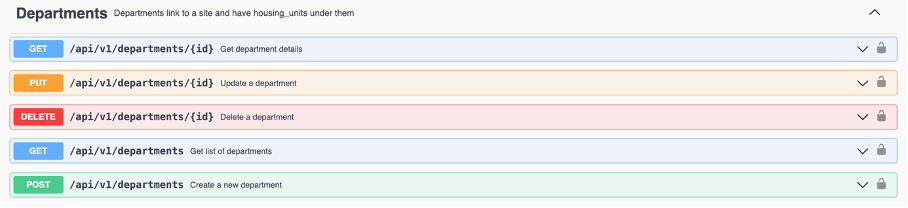
    - Device: information of the devices (Nobi lights) can be requested by the third party

    - Escalation Event: this command allows the third party to close an escalation

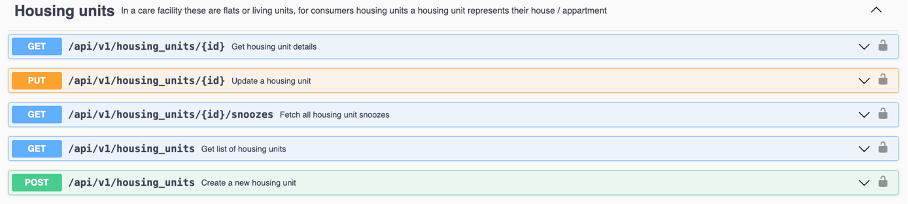
    - Housing unit: information of the housing units can be requested and changed by the third party
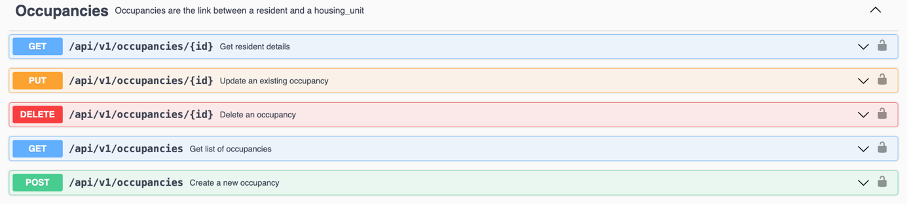
    - Occupancy: is the link between the resident and a housing unit. Information about the occupancies can be requested or changed by the third party
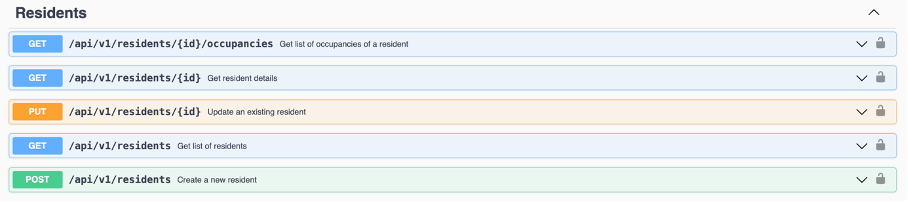
    - Resident: the data of the residents can be requested or changed by the third
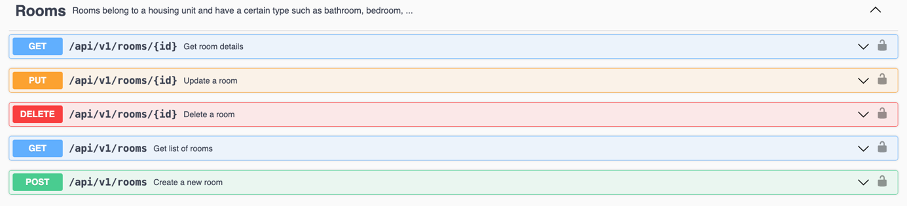
    - Room: information about the rooms can be requested or changed by the third party
    - Speech: a light can be requested to say a certain message (via the loudspeakers) to the resident. The API allows to send a command to the device (light) to speak the requested message

    - Webhooks: the third party can “subscribe” to the webhook, requesting to be informed when a resident_measurement, device_parameter, escalation_event, activity or alert is triggered (created, deleted or updated)

     

    3. How to integrate

    3.1. Master data integrations

    Nobi made a master data integration with Caresolutions. To set up this integration, go to “integrations” from the main menu, and click on the button in the upper right corner.

    There select “Caresolution” under Master data integrations:
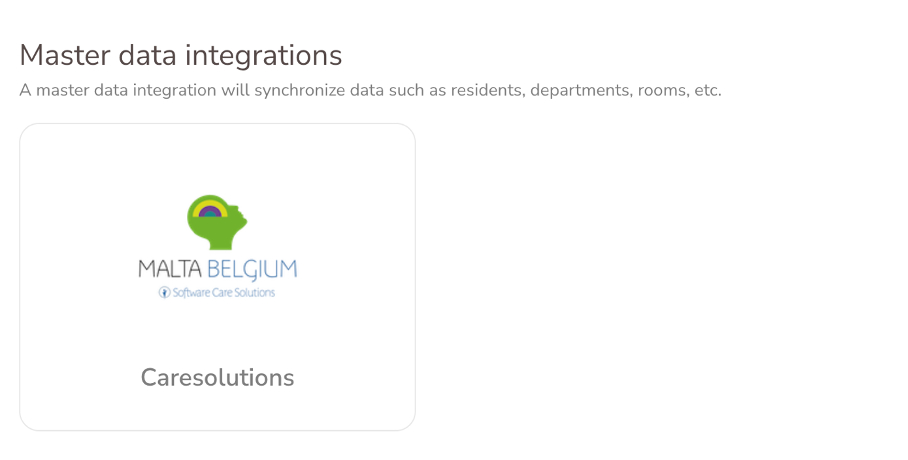
    You will have to fill in the following parameters:


    • Base url(*)
    • Initials(*)
    • Password(*)
    • Application key(*)
    • Database(*)


    The information for these parameters can be obtained in consultation with the Nobi customer and Caresolutions. The information marked with (*) is mandatory.


    3.2. Nurse call system integrations

    Nobi support the following nurse call systems:

    - Aperi
    - Ascom
    - Essec
    - Octapi
    - 25-8
    - Nobi Generic
    - Nobi Relay

    To set up an integration with a nurse call system, go to “integrations” from the main menu, and click on the button in the upper right corner. Select the nurse call system you want to integrate for this site / community.

    Every nurse call system has its own specific parameters to fill in. Hereafter a short overview:


    Nurse call system

    Parameters
    • Url(*): the url (IP address, port and path) of the Aperi Alert server
    • Username(*): the username to be used to log in with on the Aperi Alert server
    • Password(*): the password to be used in combination with the login above

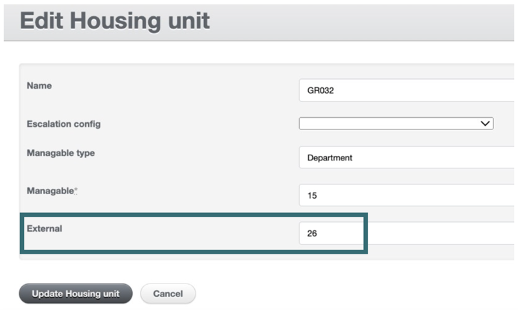
    In addition, an external ID needs to be added to the housing unit. This ID is defined in agreement with Aperi. By using external ID’s, they can be used for their internal routing (eg. the first digit can indicate the floor: 0 for ground floor / 1 for 1st floor). External housing unit ID’s are configured in the backend (edit Housing Unit)
     

    • Address(*)
    • To(*)
     
    • Url(*): the url (IP address, port and path) of the Netrix server
    • Username(*): the username to be used to log in with on the Netrix server
    • Password(*):the password to be used to log in with on the Netrix server
    • Group ID(*): this is the ID of the Netrix group

    For the integration with Essec, no external ID’s are used for the housing units. The Nobi ID of every housing unit needs to be given to Essec. This housing unit ID can be found in the url of the housing unit,

    or under “Housing Units” in the Nobi backend.
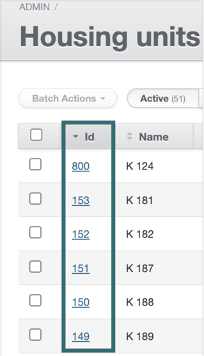
    To close the escalations on the Nobi dashboard via the Essec system, it is important to make sure that also the port 8081 is open from the Netrix server to the Nobi light.

    To set up a voice call from the DECTs to the Nobi light, the light needs to be registered on the SIP server. The information related to the SIP server can be given in under de device settings in the Nobi backend (edit device). See screenshot below.
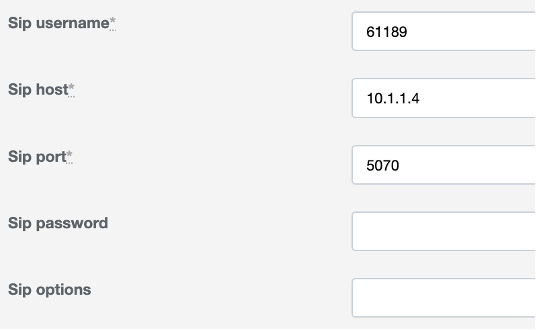
    Remark: for the username, a reference to the housing unit can be used. Every light needs it own username. The password can be set the same for all housing units.

    • Auth Url(*): authentication URL
    • API Url(*): URL to be used for the API communication
    • Client ID(*): login ID
    • Client Secret(*): login password
    For the integration with Octapi, no external ID’s are used for the housing units. The Nobi ID of every housing unit needs to be given to Octapi. This housing unit ID can be found in the url of the housing unit or under “Housing Units” in the Nobi backend.
    • API URL(*):URL to be used for the API communication
    • API key(*): key to be given to secure the communication
    • Room state fall(*): ID for a fall in the room
    • Room state panic(*): ID for a panic button alarm in the room
    • Room state presence: ID to indicate that a nurse is present in the room
    In addition, an external ID needs to be added to the housing unit. This ID is defined in agreement with 25-8. External housing unit ID’s are configured in the backend (edit Housing Unit).
    • Third party server URL(*): server url, port and path
    • Check connection endpoint(*): connection heathcheck path
    • Escalate endpoint(*): path to report escalations
    • Escalation open endpoint(*): path to check for open escalations
    • Nurse present endpoint: Nurse present is a recommended option. It’s not a must since not all legacy system can provide the nurse present information. Leave it empty if not used
    • Auth type(*): can be “No Auth” or “Basic Auth”
    • Auth config
      • Username
      • Password

    In addition, an ID for every housing unit needs to be exchanged with the third party. For the Nobi Generic integration, both the internal ID and the external ID (if filled in) will be exchanged. The external ID is defined in agreement with the third party.

    It is recommended to set up these external housing unit ID's. This is a one-time configuration during startup, but it provides the advantage of preventing issues when the internal Nobi ID's changes. Additionally, it can be utilized to introduce logic into the numbering system for external routing.

    External housing unit ID’s are configured in the backend (edit Housing Unit)


    All detailed info about this API can be found on https://nobi.cloud/api-docs/index.html

    Select here Scherm­afbeelding 2024-01-08 om 16.54.13.png

    Once the Nobi relay integration has been activated, housing units can be added by going to peripherals, select the Wired switch interface relay module . During the configuration process, you will be asked to select the function you want to use for this wired switching interface. Here select “Nurse call system”
     
    The table below gives an overview of the integrations which are available today, and the supported functionality for every integrations:
    Integration Closes escalation Supports nurse presence Supports de-escalation if Closed in app Supports external monitoring events
    Scherm­afbeelding 2024-01-08 om 14.51.34.png Scherm­afbeelding 2024-01-08 om 14.51.34.png

    Scherm­afbeelding 2024-01-08 om 14.55.46.png

    Scherm­afbeelding 2024-01-08 om 14.55.46.png
    Scherm­afbeelding 2024-01-08 om 14.55.46.png Scherm­afbeelding 2024-01-08 om 14.55.46.png Scherm­afbeelding 2024-01-08 om 14.55.46.png Scherm­afbeelding 2024-01-08 om 14.51.34.png
    Scherm­afbeelding 2024-01-08 om 14.51.34.png Scherm­afbeelding 2024-01-08 om 14.51.34.png Scherm­afbeelding 2024-01-08 om 14.55.46.png Scherm­afbeelding 2024-01-08 om 14.55.46.png

    Scherm­afbeelding 2024-01-08 om 14.51.34.png Scherm­afbeelding 2024-01-08 om 14.55.46.png Scherm­afbeelding 2024-01-08 om 14.55.46.png Scherm­afbeelding 2024-01-08 om 14.55.46.png

    Scherm­afbeelding 2024-01-08 om 14.55.46.png Scherm­afbeelding 2024-01-08 om 14.51.34.png Scherm­afbeelding 2024-01-08 om 14.51.34.png Scherm­afbeelding 2024-01-08 om 14.55.46.png

    Scherm­afbeelding 2024-01-08 om 14.51.34.png

    Scherm­afbeelding 2024-01-08 om 14.51.34.png Scherm­afbeelding 2024-01-08 om 14.51.34.png

    Scherm­afbeelding 2024-01-08 om 14.55.46.png

    Important remark: If the snooze button is used to close an escalation, note that the escalation will only be closed on the integrated system if “de-escalation if Closed in app” is supported. If not, the escalation will also need to be closed on the third party system separately.

    Once the integration has been set up, the status can be checked in the Nobi cloud frontend interface. Go to the main menu, click on:
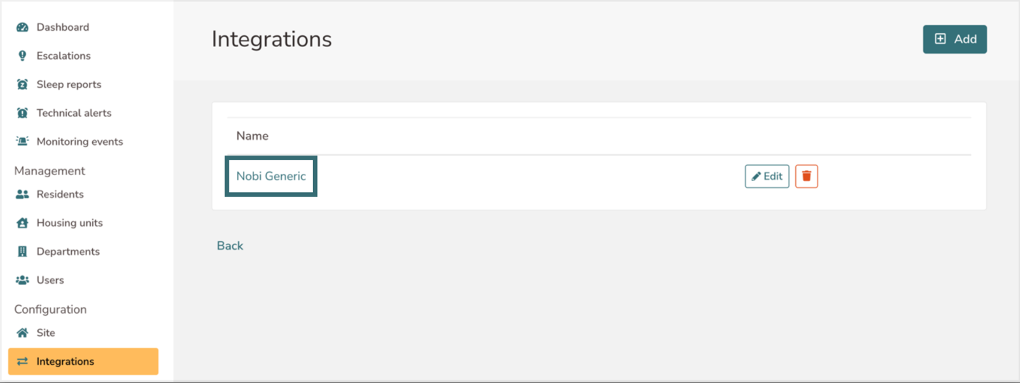
    You will then get a list of all the housing units, and the actual status of every housing unit (connected, or not connected):
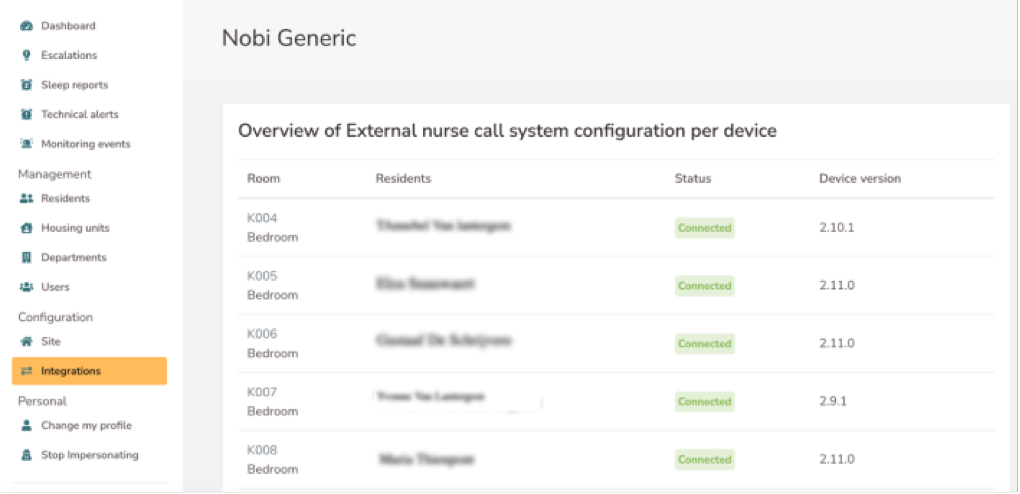
     

    If the status of a housing unit is “connected”, it means that:

    • the external nurse call system server is reachable (so network / firewall settings are ok)
    • the (external) housing unit id exists

    This DOES NOT mean that:

    • an escalation can be made
    • an escalation open check is working
    • a de-escalation (closing the escalation) is working

    This because those endpoints can still be wrongly configured at our side or mal-configured at the nurse call system side.
    So it’s very important to test a full fall cycle when configuring a new site / community !!


    3.3. OAuth application

    With the OAuth integration, it is possible for a third party who implemented our API, to connect in a secure way to the Nobi cloud. In this way, information about the Nobi installation can be exchanged.

    3.3.1. To be done at Nobi side (frontend)

    From Nobi side, a secure OAuth authentication will be created. This can be done by going to “integrations” from the main menu, and click on the button in the upper right corner.
    Here you need to select “Oauth Application”:
    This will guide you to the following screen:
    • Where the following parameters can be filled in:
      Health Check URL: This is a url that can be used by Nobi to the to check of the connection is still alive. Every minute, the cloud will send a message to this url. If a value different from 200 is received, an alert will be triggered.
    • Name(*): Here a name can be given to the integration, to know for which customer it can be used.
    • Redirect URI: This URI (Uniform Resource Identifier) refers to the web address where users are sent after successfully authenticating via OAuth.
    • Integration type(*): 2 different types of integration are possible: “Emergency call center” or “General”.
      • Emergency call center: in this case, the normal escalation procedure is not used anymore. The escalation is only sent via the API integration.
      • General: when this type is selected, the normal escalation procedure is still active. The API can be used for other parts of the integration.

    The last part is related to the scopes: here you just must select the elements that can be accessed via the integration: department, device, escalation event, housing unit, occupancy, resident, room, speech, webhooks
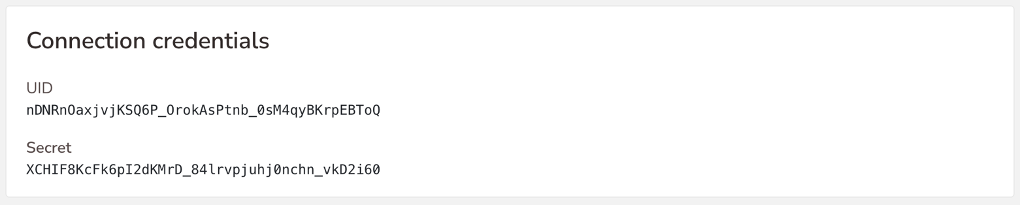
    At the end, click on and you will be given a “UID” and “Secret” that can be used by the third party to connect to the Nobi cloud.
     

    3.3.2. To be done by the Third party

    The third party who is taking care of the Nobi API integration, can find all the needed information about the API on https://nobi.cloud/api-docs/index.html


    On this url, there are 2 specification of an API:
    - API V1 Docs: this API allows a cloud to cloud integration. So the third party is querying the Nobi cloud. This is the API that will be discussed further here.
    - Nobi EI (Nobi Escalation Integration): this API allows for a local integration directly between the server of the third party, and the Nobi light. This is the API that is used for the Nobi generic integration with nurse call systems. For more info, see point "3.2. Nurse call system integrations"


    To make the integration easier, there is a swagger file available (/api-docs/v1/swagger.yaml).

    First of all, the third party needs to register on our cloud via OAuth. More information on OAuth can be found on https://www.oauth.com/oauth2-servers/access-tokens/client-credentials/.

    To do so, the “UID” and “Secret” given on the Nobi frontend needs to be used. 
    This information can be found under “Integrations” (see point 3.3.1.)
    Once the authentication has been done via OAuth, an “Authorization Bearer” or token will be given that can used in subsequent communications.
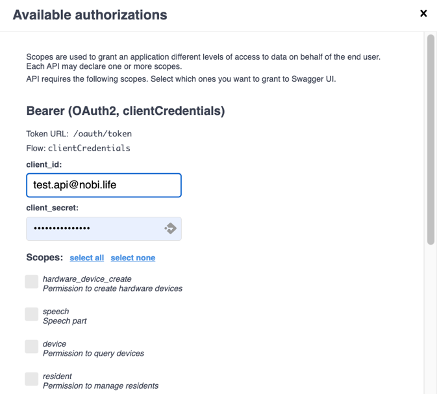
    The third party also has the possibility to test the API integration via the cloud (https://eu.nobi.cloud).
    For this, the authentication can be activated via the Scherm­afbeelding 2024-01-08 om 17.02.59.png button:
     

    Once the authentication has been done, API commands can be sent to the Nobi cloud.
    To eg. activate a webhook, the following command can be used:
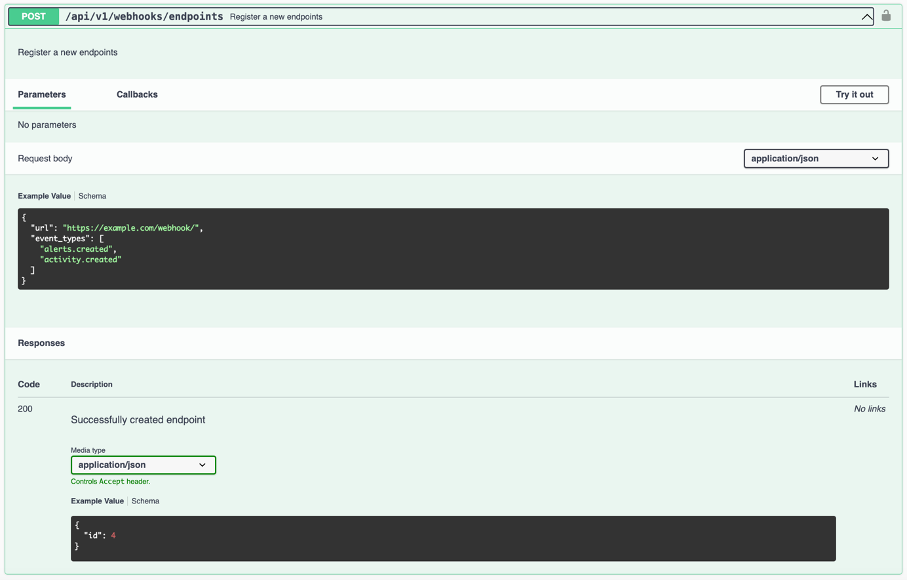
    Mention here the “event_types” you want to subscribe for in the registration message. The list of available event_types can be obtained via the command:

    The following event_types are supported:

    • resident_measurement: resident_measurement.created, resident_measurement.deleted, resident_measurement.updated
    • escalation_event: escalation_event.created, escalation_event.deleted, escalation_event.updated
    • activity: activity.created, activity.deleted, activity.updated
    • alert: alert.created, alert.deleted, alert.updated

    Once a webhook has been registered on a certain url, the Nobi cloud will send callbacks on this url. Hereafter you find the different callbacks possible:
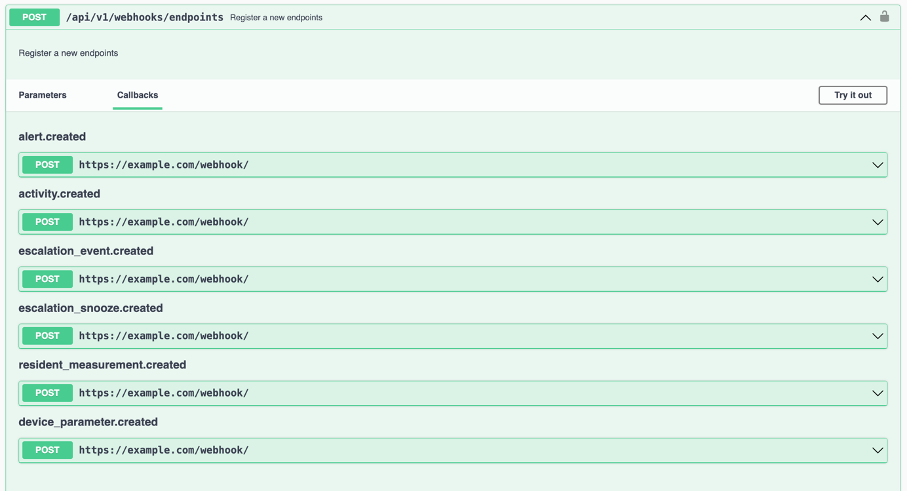
    The callback in case of an escalation looks like this:

    {
    "webhook_uuid": "04892f05-d7f8-4c82-9e2b-8669e76e65e8",
    "event_type": "escalation_event.created",
    "subject_id": 4,
    "subject_type": "EscalationEvent",
    "body": {
    "end": null,
    "room": {
    "id": 68,
    "room_type": "hobby",
    "room_type_id": 8
    },
    "start": "2022-01-17T18:10:50.713Z",
    "device": {
    "id": 68,
    "uuid": "4854d7ec-7318-4b38-a451-5c1c9f291215"
    },
    "images": [
    {
    "image": "https://imgproxy.eu.nobi.cloud.io/v7/memory%3A%2F%2F705638474f5a13c96e3ffccfa4df32ad",
    "taken_on": "2022-06-03T16:10:04.418Z",
    "original_image": "https://imgproxy.eu.nobi.cloud.io/v7/memory%3A%2F%2F705638474f5a13c96e3ffccfa4df32ad,720",
    "object_confidence": 90,
    "highest_confidence": true,
    "taken_on_formatted": "16:10:04",
    "person_position_type": "standing"
    }
    ],
    "poses": [
    {
    "x": [
    1,
    2,
    3,
    4
    ],
    "y": [
    9,
    8,
    7,
    6
    ],
    "image": "https://imgproxy.eu.nobi.cloud.io/v7/memory%3A%2F%2F705638474f5a13c96e3ffccfa4df32ad",
    "taken_on": "2022-06-03T16:15:34.386Z",
    "taken_on_formatted": "16:15:34"
    }
    ],
    "resident": {
    "id": 27,
    "name": "Daantje Sier"
    },
    "message_uuid": "60767dc1-3395-4966-a8bd-4cae2bed1ac5",
    "escalation_type": "FALL"
    }
    }


    In this callback, information about the event_type, time, room, images, poses and resident is sent. 
    It is important to note that the information about the images is presented in a different way, depending on the privacy settings of the resident:

    • “images” tag is only present in case the privacy settings are set to “show images”
    • Under the “poses” tag, the poses and the abstract images are linked. These images are present in case the privacy settings are set to “show abstract view”

    All other API commands can be used to retrieve information from the cloud, or to send information to the cloud.
    Some examples:

    Remark: the command “Create a hardware device” (POST /api/v1/hardware_devices) should not be used. This is for production purposes only.

  • Privacy settings

    In this article you will understand privacy settings for escalation images.

    What

    Nobi offers four privacy levels for escalation data, meaning images or video captured during an escalation. These settings determine whether and how this data is shared with staff.

    You can choose from four privacy levels for escalation images. These can be configured in the resident profile under the Privacy settings tab. 

    • No images: no images are saved or shared.

    • Stick figure: only a stick figure visual representation of the resident is shown.

    • Blurred images: a blurred image of the room and resident is shown.

    • Show images: fully recognizable images are visible.

    You can learn How to Use Escalation Images as well as How to Consult Images and Videos by reading our guides.

    Why

    Respecting a resident’s privacy is one of Nobi’s core principles. Nobi only uses escalation data based on informed consent from the resident or their family.

    Some residents prefer full discretion. Others allow more visibility so care staff can better understand what happened and respond quickly and safely.

    The different privacy levels help communities choose the right balance between privacy and useful context.

    Levels of privacy 

    No images

    No images are saved or shared with care staff.

    Use this setting when the resident does not consent to escalation images being available.


    Stick figure

    Only a stick figure visual representation of the resident is shown.

    The background is a static image of the room. This image is taken when no one is in the room. During an escalation, the resident’s pose is shown as a stick figure on top of that static background.

    This gives care staff a basic idea of the resident’s position, while keeping the resident highly anonymized.

    However, the context is limited. Care staff cannot fully see what happened in the room, what caused the fall or escalation, or how the resident’s body was positioned in detail.


    Blurred images

    A blurred image of the room and resident is shown.

    With blurred images, the background remains real-time. This means care staff can still see the escalation in the context of the room and better understand what happened.

    At the same time, the resident’s privacy is protected because the image is blurred.

    This setting offers a balance between privacy and clinical value.


    Actual images

    Fully recognizable images are shown.

    This gives care staff the most complete context. They can see the room, the resident, and the situation as clearly as possible.

    This can help staff better understand what caused the fall or escalation and what support may be needed.

    Because the images are not anonymized, this setting offers less privacy than stick figure or blurred images.


    Multi-person housing units

    In a multi-person housing unit, the strictest privacy setting of the residents in that housing unit is applied.

    For example, if one resident allows actual images, but another resident has stick figure selected, the escalation will show stick figure images only. 

    This ensures that the privacy preferences of the resident with the strictest setting is always respected.

    Jack and Jill housing units

    In a Jack and Jill housing unit, privacy settings depend on where the escalation happens. In private zones, such as bedrooms, the privacy settings of the resident linked to that room is applied.

    In shared zones, such as a bathroom or living room, Nobi compares the privacy settings of both residents and applies the setting of the resident with the strictest privacy level.

    For example, if one resident allows blurred images, but another resident has no images selected, no images will be shown for escalations in the shared zone. If the resident who allows blurred images were to fall in their private room, then blurred images of the escalation will show.
     
    You can learn more about the different Types of Housing Units by reading our discover page.

    Images and video

    Images and video availability also depend on the type of escalation and device. Nobitas cannot create videos. 

    For falls within a resident's housing unit images and video are be available, depending on the resident’s privacy settings and the device type. In a common area, no images or videos are shown.

    For some Resident calls like call button presses or pull cord calls, images are shown based on the privacy settings, but video is not available. 

    You can also view the history of all privacy setting changes in the history, which can be located in the bottom right corner of the resident's Privacy Settings tab.

    For an overview of your residents' privacy settings, consult the Resident Insights

    Contact Nobi Support for more help.

  • What is a Stick Figure?

    In this article you will learn about the abstract display of a person, referred to as a stick figure. 

    What

    The abstract display is a simplified visual of a person’s posture, shown as a stick figure made up of connected lines. It replaces real images to ensure privacy while still conveying body position.

    The stick figure is also shown as a representation of the resident when consulting the Live View.

    Why

    Privacy matters. Nobi represents residents by replacing identifiable images with an abstract representation. The model shows 18 key points connected by lines, forming a stick figure that mirrors the person’s actual posture.

    This visual helps caregivers monitor and analyze without compromising privacy. It's especially valuable in shared rooms or for residents who want actual images. The system processes this model locally, reducing image storage and exposure.

    The abstract display appears only when “Stick figure” is selected in the privacy settings, or when viewing the live view of the resident's housing unit. For shared rooms, the most restrictive resident setting applies.

    You can change privacy settings per resident in regard to the stick figure representation. To learn how, click here. 

    Afbeelding2.pngAfbeelding1.png

    Still have questions? Contact Nobi Support.

  • Peripherals to Use with the Nobi Light

    Peripherals are used in combination with the Nobi light.

    Below is an overview of the available peripherals, what they do, and where they are used.


    The Nobi Button

    A self-powered wireless button that works like a wall switch for the Nobi Smart Light, with extra functions to send a call request, snooze fall detection, or close an escalation. No batteries or cables needed.


    Wireless Switching Interface (On-Wall)

    A battery-powered button that controls the Nobi Smart Light like a switch and can also send a call request, snooze fall detection, or close an escalation—all with a single press.


    The Wired Switching Interface


    Wired switching interface modules make it possible to use traditional wall switches with the Nobi Smart Light while keeping constant power to Nobi.

    • Wired switching interface Relay: Connects behind a wall switch to control both the Nobi light and other devices (e.g. a second light or night lighting). Ideal when multiple lights are linked to one switch.

    • Wired switching interface (Mains): Powered directly from the mains, it lets a standard wall switch operate the Nobi light like a normal light, as long as constant power and space are available.

    Both options provide reliable control without charging or maintenance.


    Wireless push button interface


    A compact, battery-powered switch that lets existing wall switches control the Nobi Smart Light while it stays powered. Battery status is visible in the app, and low-battery alerts are sent automatically.


    Wearable Call Button (Gen 1)


    A waterproof, rechargeable button worn as a bracelet or pendant. Connected wirelessly to the Nobi light, it lets residents send a call request with one press—always within reach for daily use.
     

    Pull cord

    enocean_pull_cord-7003fbefc651472e1a510d5d83e5105915ff99e9b7f504cf60538e829e01e095 (1).png

    The Nobi Pull Cord is a self-powered device that lets residents trigger a call request by pulling a cord.
     

    Wearable Call Button

    The wearable call button is a device that lets residents quickly call for help or request assistance by pressing a discreet device warn on their wrist or as a necklace. It integrates directly with the Nobi platform and ensures fast, reliable communication during escalations.
     

    The scale


    A Bluetooth-connected scale that sends weight directly to the Nobi Smart Light. The light reads the value aloud and shows it on the dashboard, supporting residents who may not easily read the scale themselves.


    Blood pressure monitor


    A Bluetooth device that sends measurements directly to the Nobi Smart Light. The light reads the values aloud and shows them on the dashboard, making daily health tracking simple and accessible.


    Bluetooth door lock


    A smart Bluetooth door lock that works with the Nobi Smart Light to let authorized contacts unlock doors during a fall escalation or call request. It ensures quick access while keeping residents safe and in control.

    Still have questions? Contact Nobi Support.

  • Escalation Procedure

    In this article you will discover how Nobi sends fall escalations and call requests via an Escalation procedure.  

    What

    When a fall occurs or the call button has been pressed, help is required quickly. Nobi achieves this by contacting the right people through the right channels. This is done through what we call an escalation procedure

    Nobi sends alerts through four different channels: by calling and sending a text message, in-app notification, via email, a nurse call system. You can set up different escalation procedures on different levels within the organization. This can be done at the site / community level, department level, and at the housing unit level. 

    Why

    Without an escalation procedure, Nobi cannot alert you of a fall. It is important that you configure the escalation procedure in such a way that each resident can be assisted as fast as possible in case of a fall. Each situation is different, therefore flexibility is possible. In order to be able to offer help as quickly as possible, specific care providers can be allocated via specific channels.

    To make this process fit each organization’s structure, the escalation procedure can be configured at three levels:

    • Site / Community level applies to all departments and rooms.

    • Department level overrides the site / community settings for that department only.

    • Housing unit level takes priority over both and applies only to that room.

    This flexibility helps you make escalation flows that suit both large care facilities and individual housing units.

    To get the most out of Nobi's escalation procedure:

    • Set a default procedure at the site / community level so no room is ever left unprotected.

    • Use the department level for tailored procedures in specific units.

    • Fine-tune escalation per housing unit when dealing with unique resident needs.

    For more information on how to set up an escalation procedure, click here.

    Still have questions? Contact Nobi Support.